
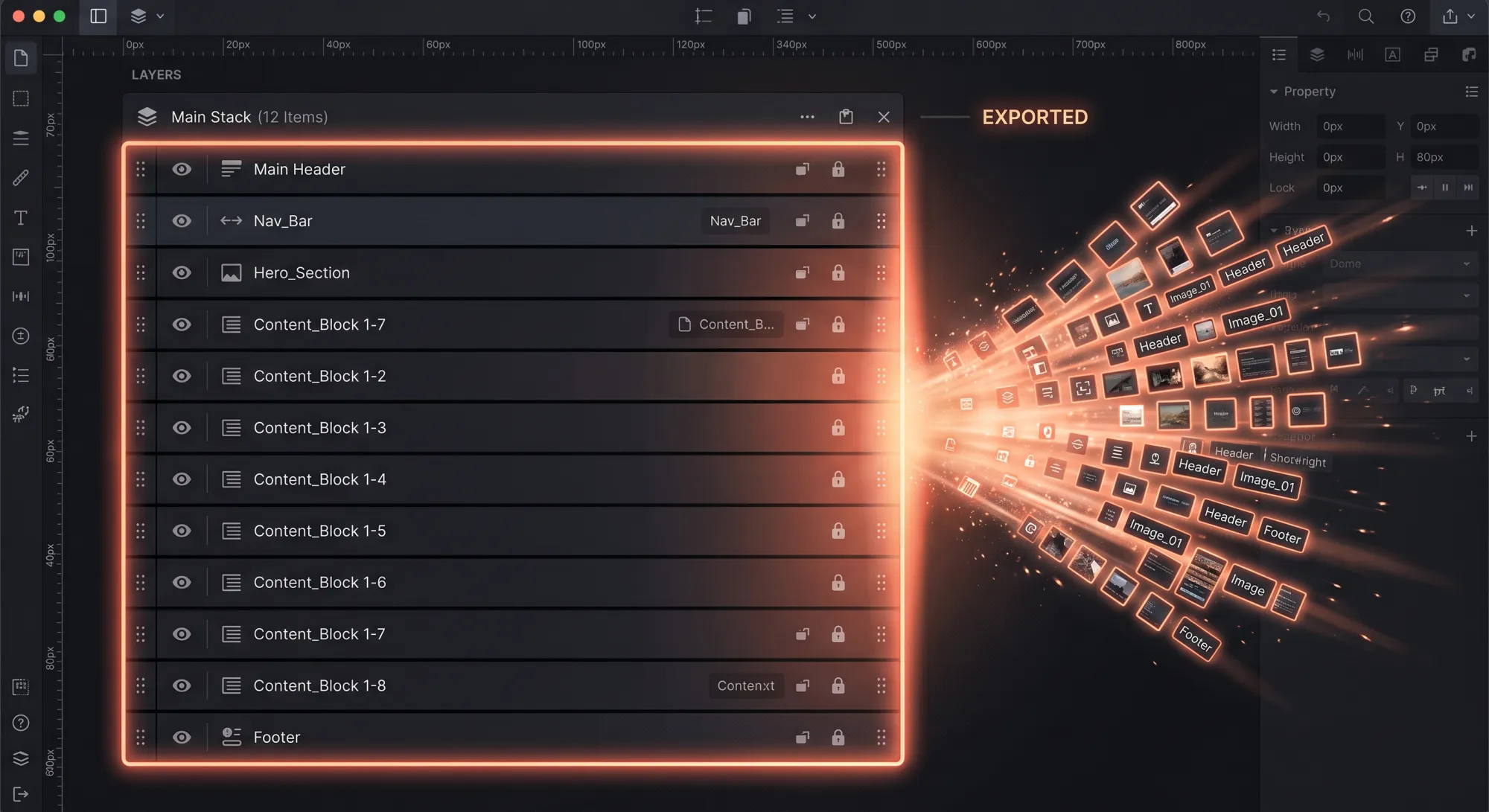
Figma Bulk Export: Every Layer at Once with Shift+Cmd+E
Select every layer you want → click the + in the Export panel → press Shift+Cmd+E (Shift+Ctrl+E on Windows).
That's it. Figma exports every marked layer in the file in one action, each keeping its own format and scale. The reason almost nobody uses it is that marking layers and exporting them are two separate steps, and the export panel sits at the very bottom of the sidebar where it's easy to never scroll to.
Exporting twenty images one at a time is the single biggest waste of time in a designer's week, and it's entirely avoidable. Figma has had proper batch export for years — it's just badly signposted.
Wanted one file, not many? Batch export deliberately gives you one file per layer. If you're trying to combine several layers into a single flattened PNG, or several frames into one multi-page PDF, those need a different route.
Step 1: Mark the layers
Select everything you want to export. Shift-click to build up a selection, or select a parent frame to catch what's inside it.
Then, in the right-hand panel, scroll to the bottom until you find Export, and click the +.
The key detail: with several layers selected, that one click marks all of them. You don't repeat it per layer. Select fifty icons, click + once, and all fifty are now marked for export.
Marking is persistent. It's saved with the file, so next time the same assets need re-exporting, they're already set up — you just hit the shortcut. On a file you'll ship from more than once, spending two minutes marking things properly pays back every time after.
Step 2: Format and scale
With the layers still selected, set the format and scale once and it applies to all of them.
For web work: 2x scale, and JPG for photos or PNG for anything needing transparency or containing small text. The 2x matters — 1x is the default and it's the cause of nearly every blurry image on the web. We go into why in why Figma exports come out blurry.
Note there's no WebP option here, and no quality slider. Both are real gaps in Figma's export panel rather than something you've missed — see getting WebP out of Figma.
Step 3: Export everything
Press Shift+Cmd+E (Mac) or Shift+Ctrl+E (Windows).
This opens the export dialog for every marked layer in the file — not just your current selection. Figma shows you the full list with a count, you pick a destination folder, and it writes them all.
If you only want the layers you have selected right now, use the Export button inside the panel instead. The distinction catches people out: the shortcut is file-wide, the button is selection-only.
The slash trick: export into folders
This one is genuinely underused. A forward slash in a layer name becomes a folder on export.
Name your layers like this:
icons/home
icons/search
icons/settings
hero/desktop
hero/mobile
…and Figma writes an icons folder and a hero folder, with correctly named files inside each. No manual sorting afterwards.
Nesting works too — icons/nav/home creates icons/nav/home.png. On a design system export this turns a folder of 200 loose files into something a developer can actually use.
Two sizes from one layer
A layer can carry more than one export setting. Click + again and you get a second row.
The standard use: one row at 1x with no suffix, one at 2x with the suffix @2x. A single export produces both files, correctly named, ready to drop into a srcset.
| Scale | Suffix | Output for a 600px frame |
|---|---|---|
| 1x | — | card.png at 600px |
| 2x | @2x | card@2x.png at 1200px |
You can mix formats across rows too — an SVG and a PNG fallback from the same layer in one keystroke.
What batch export still won't do
Batch export solves the exporting. It doesn't solve the rest of the job, and it's worth being clear about where it stops:
- No WebP. PNG, JPG, SVG, PDF. That's the whole list, in batch as much as anywhere else.
- No quality control. Figma's JPG quality is a coarse preset, so every batch needs a compression pass afterwards if file size matters.
- Not available in Dev Mode. Batch export is a Design-mode feature — a developer in Dev Mode can only export one asset at a time and has to switch modes for anything more.
- No max dimensions. Scale is a multiplier, not a cap. Export a large frame at 2x and you can easily produce something over WordPress's 2560px threshold without noticing.
- It ends in your downloads folder. Fifty files exported in one keystroke are still fifty files you now have to upload somewhere.
That last one is the real remaining cost. Batch export takes the export from twenty actions down to one — and then the upload is still twenty actions. If those files are headed for a WordPress site, Fig2WP Image Uploader collapses both halves: select the layers, set format, quality and max width once, and the finished images go straight into the Media Library. No downloads folder in the middle.
FAQ
What's the batch export shortcut in Figma?
Shift+Cmd+E on Mac, Shift+Ctrl+E on Windows. It exports every layer in the file that has an export setting attached.
Why does the shortcut export more than I selected?
Because it's file-wide by design — it catches everything marked for export anywhere in the file. For selection only, use the Export button inside the panel.
How do I export Figma layers into folders?
Put a forward slash in the layer name. icons/home becomes home.png inside an icons folder.
Can I batch export as WebP?
Not from Figma directly — WebP isn't one of its export formats. You need a converter afterwards or a plugin that converts during export.
Can I remove export settings from lots of layers at once?
Yes. Select them all and click the minus next to the export row. Same as marking, it applies across the whole selection.
Can I export multiple layers as one PNG instead of separate files?
Yes, but not with batch export — that's one file per layer by design. Group the layers and attach the export setting to the group instead. Full walkthrough: exporting multiple layers as one PNG.
Why does the shortcut say "no selected layers have export settings"?
Nothing in your selection is marked yet — marking and exporting are separate steps. See the fix and the six cases where it appears anyway.
Can I batch export as a single PDF?
Not from the Export panel, which writes one PDF per layer. Use File → Export frames to PDF for a multi-page document.
One keystroke to export. Zero to upload.
Fig2WP takes the selection you'd batch-export and sends it straight to your WordPress Media Library instead — WebP, quality control and max dimensions included, with the file size shown before anything uploads.