
Can Figma Export WebP? No — Here Are 4 Ways to Get WebP Files Anyway
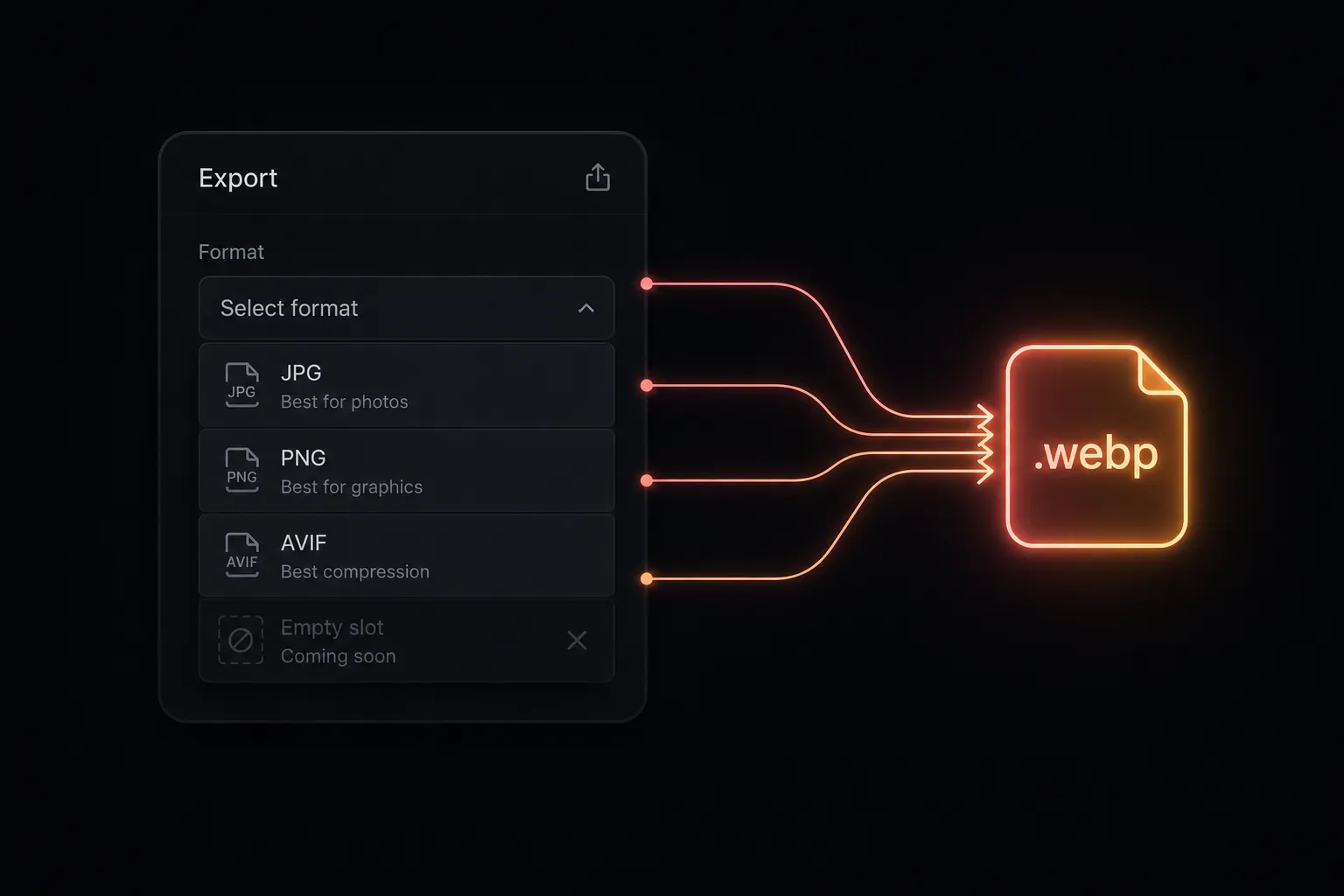
Short answer: Figma cannot export WebP. The export panel offers PNG, JPG, SVG and PDF only, and it always has. There is no hidden setting, no beta flag, and no file-type dropdown you've missed.
To get WebP out of Figma you have four options: convert after export with Squoosh, batch-convert with cwebp on the command line, use a Figma plugin that converts during export, or — if the images are going to a WordPress site — convert and upload in the same step.
- Why Figma still won't export WebP
- How much smaller WebP actually is
- Option 1: Export PNG, convert in Squoosh
- Option 2: Batch convert with cwebp
- Option 3: A converter plugin in Figma
- Option 4: Convert and upload in one click
- Which option should you use?
- Quality settings that hold up
- WebP on WordPress: the gotchas
- What about AVIF?
- FAQ
Open Figma's export panel and count the formats: PNG, JPG, SVG, PDF. In 2026, with every performance audit on earth telling you to serve WebP, the design tool most of the web is built in still won't produce it.
This is one of the most-requested features in Figma's forums, and it has been for years. Until it ships, here's every route that actually works — and what each one costs you in time.
Why Figma still won't export WebP
Figma's export pipeline is built around formats that serve two very different audiences: developers shipping assets (PNG, JPG, SVG) and people sending work to print or clients (PDF). WebP sits awkwardly between them. It's a delivery format, not a handoff format — you rarely want a WebP file sitting in a design system or a component library.
The practical consequence is that WebP conversion has been left to the ecosystem. That's not unreasonable, but it does mean the last mile of "design finished → image on the site" is still manual for everyone.
Worth knowing: the same gap exists for AVIF and for any quality slider at all. Figma's JPG export has a fixed, fairly gentle compression level you cannot adjust. If you've ever wondered why Figma JPGs come out heavier than expected, that's why — see our export settings guide.
How much smaller WebP actually is
Worth being concrete, because "smaller" gets thrown around loosely. Typical results for images exported from Figma at 2x:
| Asset type | PNG from Figma | WebP @ q80 | Saving |
|---|---|---|---|
| UI screenshot, 1600px wide | ~850 KB | ~120 KB | ~86% |
| Hero photo, 2400px wide | ~2.1 MB | ~280 KB | ~87% |
| Illustration, flat colour | ~340 KB | ~60 KB | ~82% |
| Photo already exported as JPG | ~420 KB (JPG) | ~290 KB | ~30% |
That last row is the one people miss. If you're already exporting JPG and compressing it properly, moving to WebP is a nice incremental gain. If you're exporting PNG — which Figma defaults to — you're shipping images four to eight times heavier than they need to be. Smaller files mean faster Largest Contentful Paint, which Google measures and ranks on.
Browser support stopped being a question years ago. Every browser that matters has handled WebP since 2020, and WordPress has accepted WebP uploads natively since 5.8. The only friction left is getting the file out of Figma.
Option 1: Export PNG, convert in Squoosh
The classic route, and the right one if you're moving three images. Export your layers as PNG at 2x (see the export settings guide for why 2x, or why 2x sometimes still comes out blurry), then open squoosh.app, drag the file in, pick WebP on the right-hand side, set quality to 80, and download.
Good: free, no install, excellent encoder, live side-by-side preview so you can see exactly what a quality setting costs.
Bad: strictly one image at a time. At roughly 20–30 seconds per file including the download round trip, a batch of twenty is a genuinely irritating ten minutes.
Option 2: Batch convert with cwebp
If you're comfortable in a terminal, Google's own encoder handles a whole folder in one line. Install it via brew install webp on macOS or your package manager on Linux, then:
for f in *.png; do cwebp -q 80 "$f" -o "${f%.png}.webp"; doneFor images with transparency, add -alpha_q 100 to keep the alpha channel lossless while still compressing the colour data:
for f in *.png; do cwebp -q 80 -alpha_q 100 "$f" -o "${f%.png}.webp"; doneGood: fast, scriptable, the best-quality encoder available, free.
Bad: every image still makes a round trip through your downloads folder, and you're still uploading the results by hand afterwards. It solves conversion, not workflow.
Option 3: A converter plugin in Figma
The Figma Community has a number of small plugins that add WebP output — search "WebP" in Community and take your pick. They convert your selected layers and hand you the files as downloads.
Good: kills the separate-converter step entirely. Conversion happens where the design lives, and batch selection works.
Bad: you're still holding a folder of files that need renaming and uploading. For assets going into an app bundle or a static site repo, that's fine — that's where they needed to end up anyway.
Option 4: Convert and upload in one click
If the destination is a WordPress site, the download step itself is the waste. Why write a file to disk only to pick it up and post it somewhere thirty seconds later?
Fig2WP Image Uploader converts selected layers to WebP — with a quality slider and max-dimension control — and sends them straight to your Media Library over an API key. No files touch your disk.
- Select your layers on the canvas.
- Pick WebP as the output format and set quality (80 is a good default).
- Set file names and alt text in the plugin list.
- Upload. The finished WebP files appear in Media Library seconds later.
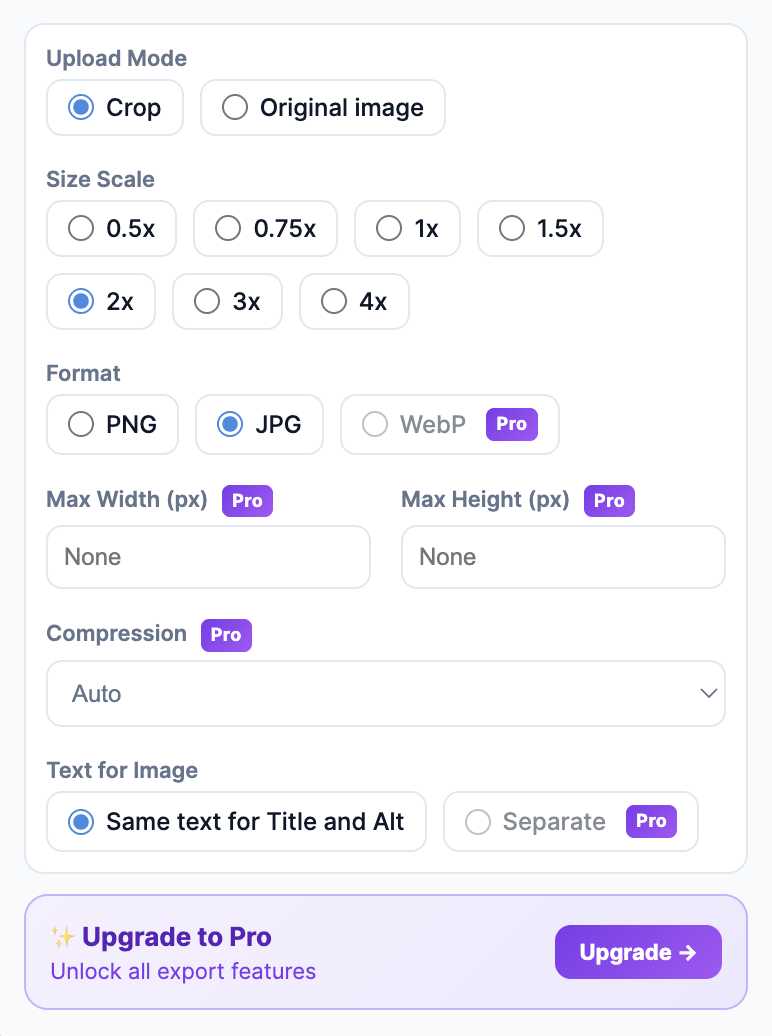
Good: conversion, resizing, alt text and upload collapse into a single step. A twenty-image batch takes under a minute instead of the better part of twenty.
Bad: it's WordPress-only by design. If your images aren't going to a WordPress Media Library, options 2 and 3 are the right tools.
Which option should you use?
| Situation | Best route | Time for 20 images |
|---|---|---|
| A few images, any destination | PNG export + Squoosh | ~10 min |
| Big batches, comfortable in a terminal | PNG export + cwebp | ~4 min |
| Assets for an app or static site | Community WebP plugin | ~5 min |
| Images going to a WordPress site | Fig2WP: convert + upload in one step | under 1 min |
Quality settings that hold up
WebP quality 75–85 is the working range for photos and UI images. At 80, a typical 400 KB Figma PNG lands around 60–90 KB with no visible difference. Below 70 you'll see banding in gradients and smudged fine detail. Above 90 the file size climbs steeply for changes no one can see.
Two cases deserve a manual check before you batch-convert a whole design system:
- Screenshots containing small text. Compression artefacts land hardest on high-contrast edges, which is exactly what 12px type is. Check at 100% zoom, and consider quality 90 for these specifically.
- Flat-colour illustrations and logos. WebP still beats PNG here, but if the asset is vector in origin, export SVG instead and skip raster entirely. Never rasterise an icon you didn't have to.
WebP on WordPress: the gotchas
Getting the WebP file made is only half the job. Four things regularly catch people out once the file reaches WordPress:
Thumbnails are generated as WebP too
Upload a WebP and WordPress generates every registered image size from it in WebP. That's usually what you want. It also means a theme that hardcodes .jpg extensions somewhere will quietly break — rare in 2026, but worth knowing if you're on an old custom theme.
The 2560px "big image" threshold still applies
WordPress scales any upload wider than 2560px down and keeps the original as -scaled. If you're exporting 2x from a large Figma frame you can cross that line without noticing. Setting a max width in your export tool before upload gives you control over the resize instead of leaving it to WordPress — see the WordPress image size guide for the exact numbers.
Existing images aren't converted retroactively
Switching to WebP affects new uploads only. A library full of legacy PNGs needs a bulk-conversion plugin or a re-upload — uploading WebP going forward doesn't touch what's already there.
Some hosts still block WebP at the upload layer
Rare now, but a handful of managed hosts maintain their own MIME allowlists. If a WebP upload fails with a vague "sorry, this file type is not permitted" message, that's the cause, and it's a support ticket rather than a WordPress setting.
For the full format decision — when WebP genuinely beats PNG and JPEG and when it doesn't — see WebP vs PNG vs JPEG for WordPress.
What about AVIF?
AVIF compresses harder than WebP — typically another 15–25% at equivalent visual quality — and WordPress has accepted it natively since 6.5. On paper it's the better format.
In practice, three things keep WebP as the default in 2026: AVIF encoding is markedly slower, which matters when you're converting a batch; tooling support is thinner, including in Figma's plugin ecosystem; and the real-world gap at sane quality settings is smaller than the headline numbers suggest. Figma exports neither, so you're picking a converter either way — but WebP is the one every tool in the chain handles without argument.
FAQ
Can Figma export WebP natively?
No. PNG, JPG, SVG and PDF only. Every WebP route goes through a converter or a plugin.
Can I export WebP from Figma in bulk?
Not with Figma alone. Select everything you need and use a plugin that converts during export, which handles the whole selection in one pass instead of one file at a time.
How much smaller is WebP than PNG?
For Figma output at quality 80, expect roughly 15–25% of the PNG size. Against an already-compressed JPG the saving is more like 25–35%.
Does WordPress accept WebP?
Yes, since WordPress 5.8 (2021). Thumbnails and all registered image sizes are generated from WebP uploads just like from JPG.
Does WebP support transparency?
Yes, including partial alpha, which is why it replaces PNG so effectively. Add -alpha_q 100 in cwebp if you want the alpha channel kept lossless. If your exports are coming out with a background you didn't ask for, that's a separate problem — see why Figma exports lose transparency.
Should I use AVIF instead?
Not by default. It compresses better but encodes slower with thinner tooling support. See the AVIF section above and our format comparison.
WebP without the workaround
Fig2WP converts Figma layers to WebP and uploads them to your WordPress Media Library in one click — quality slider included, downloads folder untouched. Free to start.