
Fig2WP exports selected Figma layers, applies your output settings (format, quality, dimensions), and uploads files to WordPress Media Library via X-API-Key authentication.
- WordPress admin access (plugin install + settings access).
- Figma account with permission to run plugins.
- A reachable WordPress site URL using
http://orhttps://. - Layers selected in Figma that can be exported as images.
Install the WordPress plugin
Option A: Install from the WordPress plugin directory (recommended)
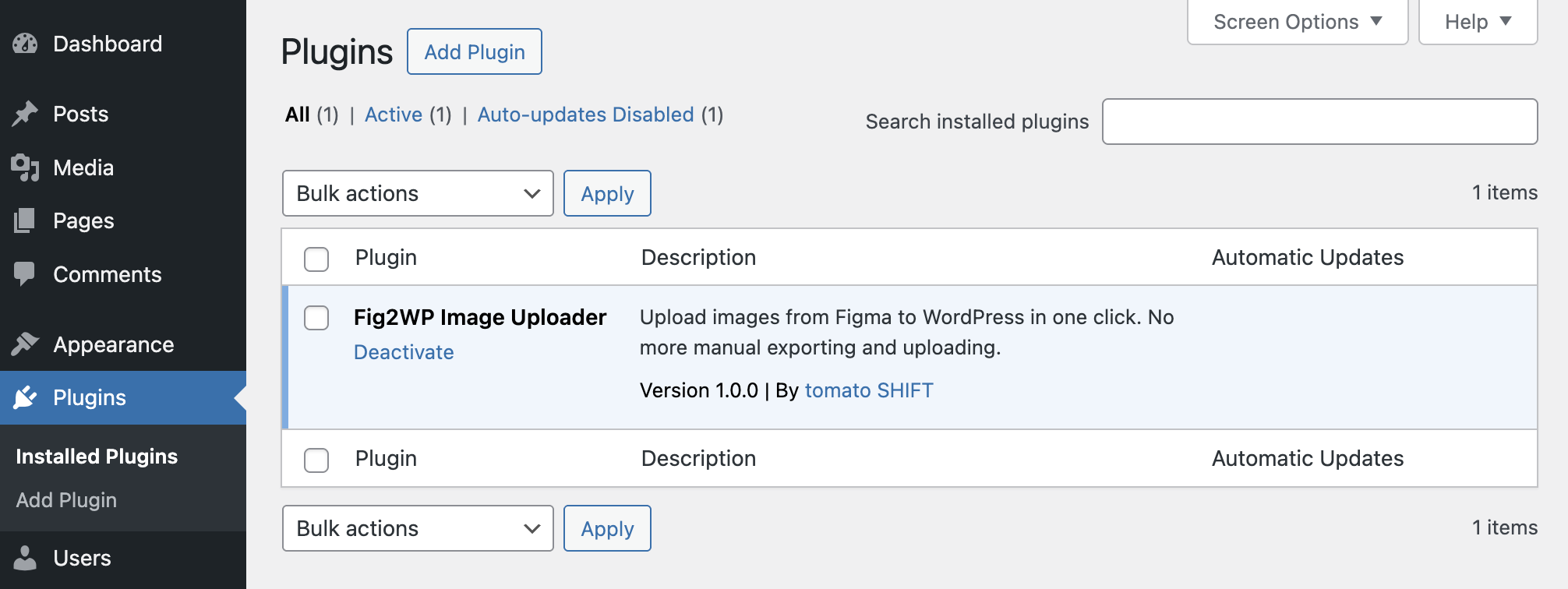
- In WordPress Admin, go to Plugins → Add New Plugin.
- Search for tomatoSHIFT Image Uploader for Figma.
- Click Install Now, then Activate.
Installing from the directory means WordPress updates the plugin for you whenever a new version ships.
Option B: Install from ZIP
- Download the ZIP from the plugin page on WordPress.org.
- In WordPress Admin, go to Plugins → Add New Plugin → Upload Plugin and choose the ZIP.
- Click Install Now, then Activate Plugin.
Generate API key
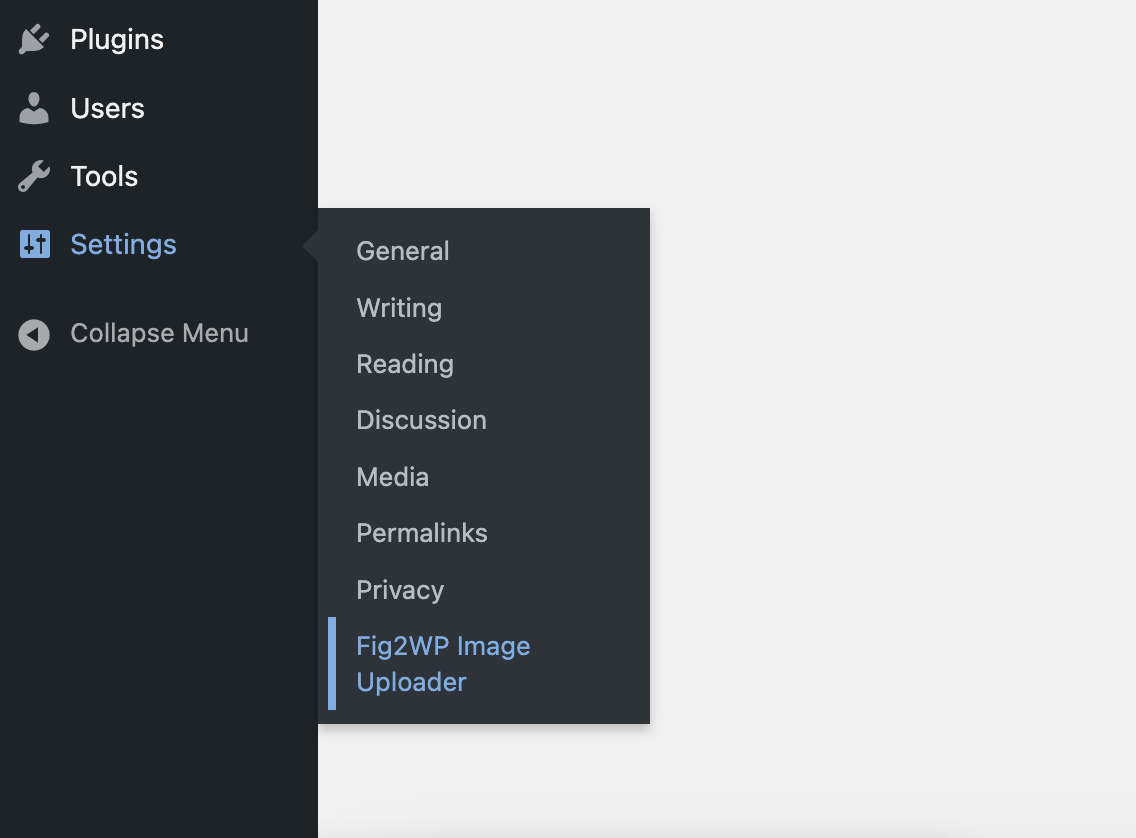
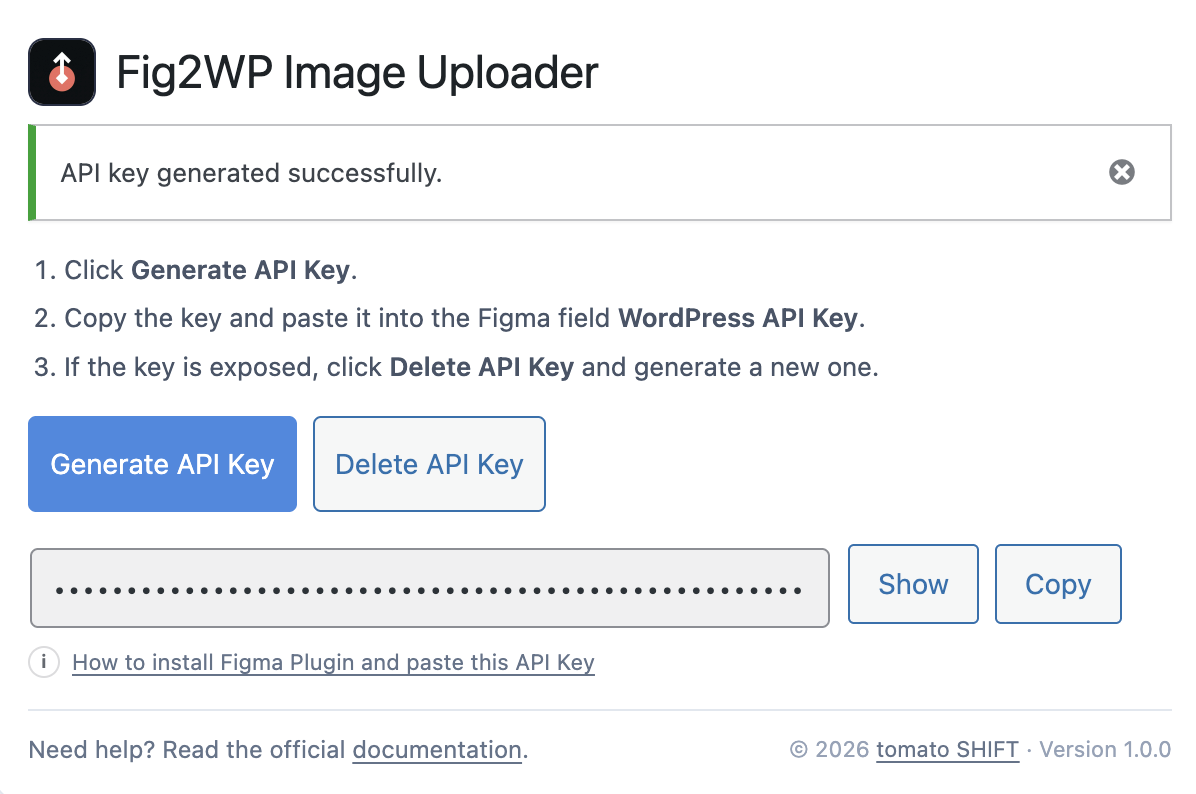
- Go to Settings → tomatoSHIFT Image Uploader for Figma.
- Click Generate API Key.
- Click Copy and keep this key for Figma settings.
- If needed, rotate the key with Delete API Key then generate a new one.
Install the Figma plugin
- Open Figma and go to the plugin page in Figma Community.
- Click Install.
- Open a design file, then run Plugins → Fig2WP Image Uploader.
Configure plugin settings in Figma
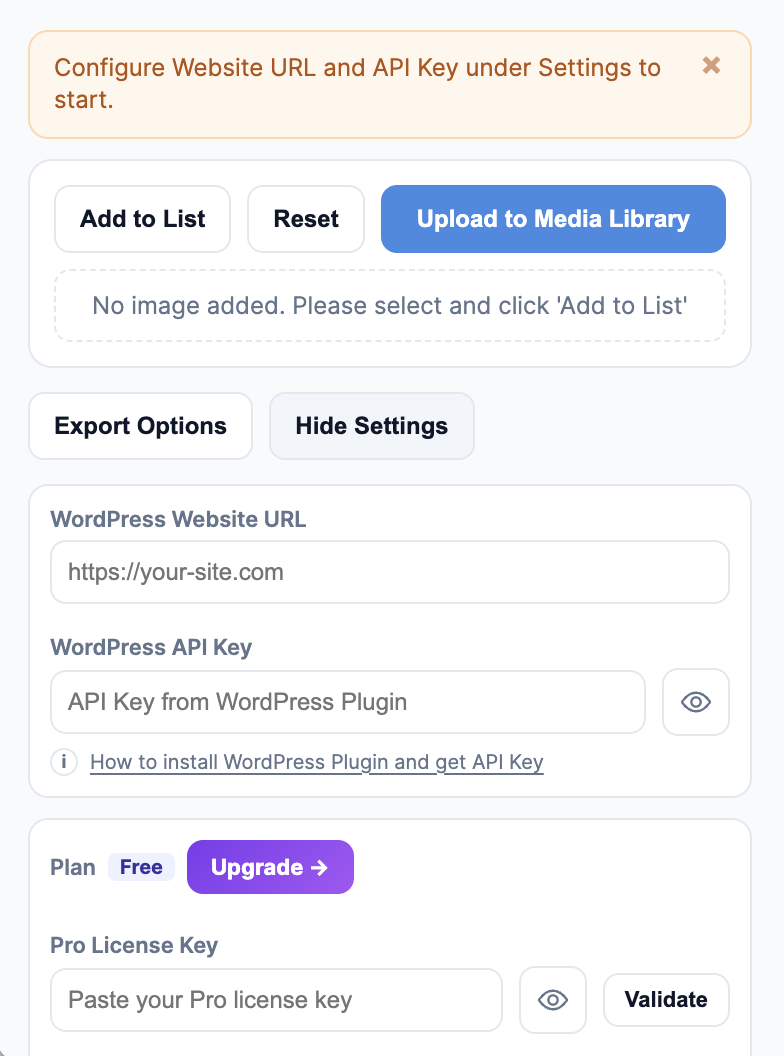
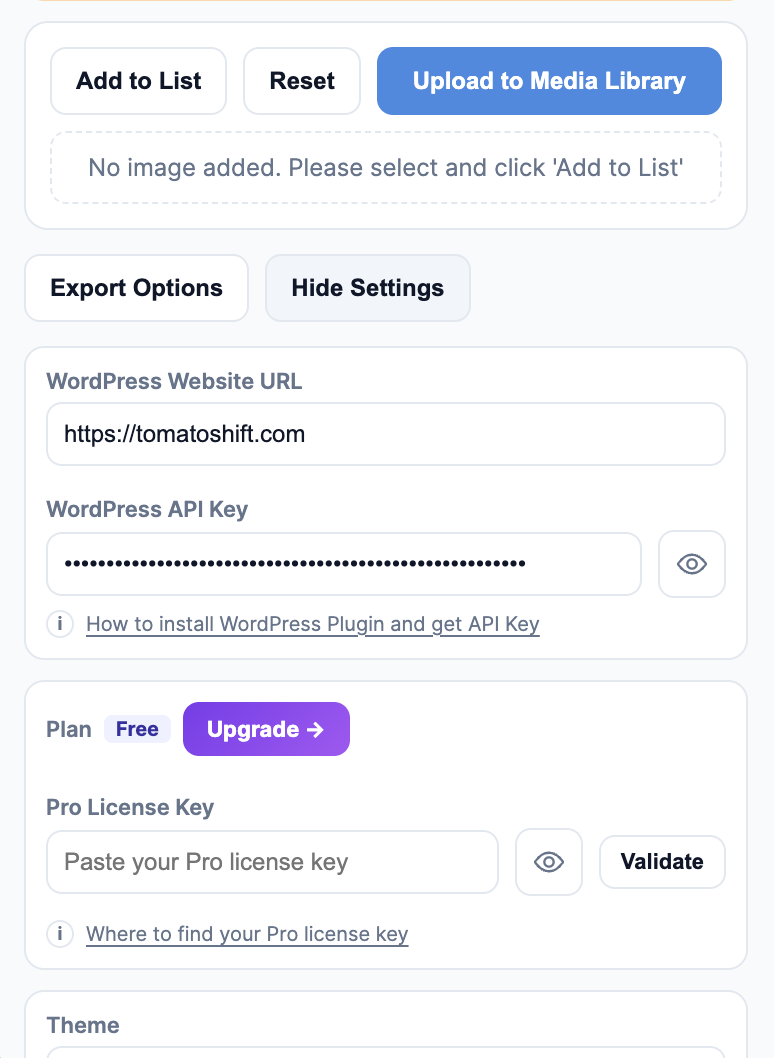
- Open Settings in the plugin UI.
- Set WordPress Website URL (for example:
https://your-site.com). - Paste your WordPress API Key.
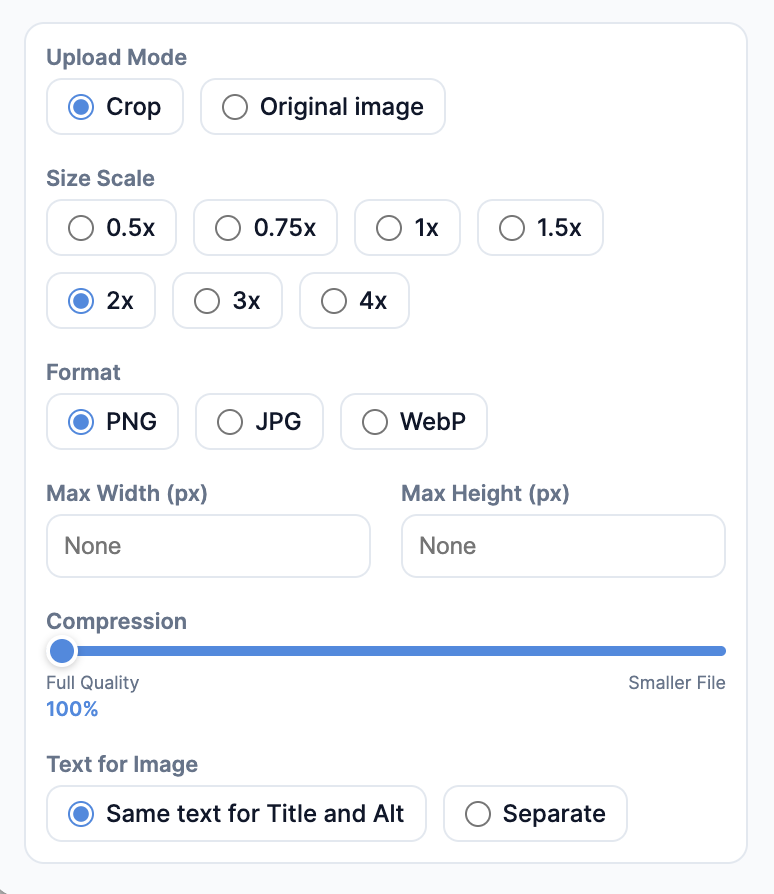
- Open Export Options and choose:
.local domains will not work,
except http://localhost or http://127.0.0.1 during local development.
- Upload Mode: Crop or Original Image
- Crop Size Scale: 1x, 1.5x, 2x, 3x, 4x (Crop mode only)
- Format: png, jpg, webp (Pro)
- Max Width / Max Height (pixels)
- Quality from 1 to 100
Crop: Exports exactly what is visible inside the layer/frame bounds. Use this when you want the final image to match the selected area only.
Original Image: Exports the full source image without cropping to frame bounds, and keeps original image quality by default. Use this when you need the entire original asset at original quality. (If you set Quality lower for JPG/WEBP, that output quality setting will still apply.)
Tip: Settings are saved, so you usually configure once and reuse.

Upload images from Figma to WordPress
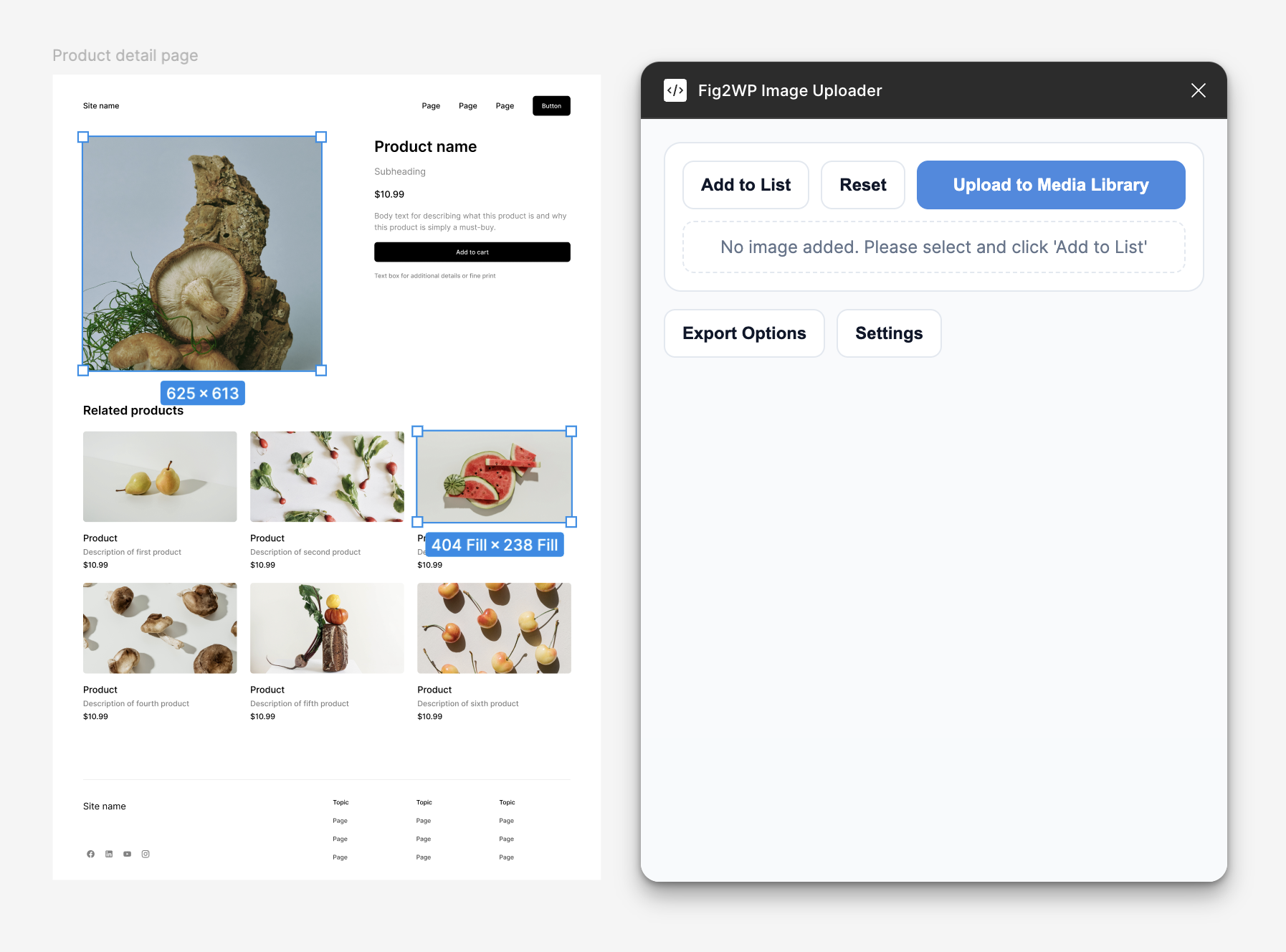
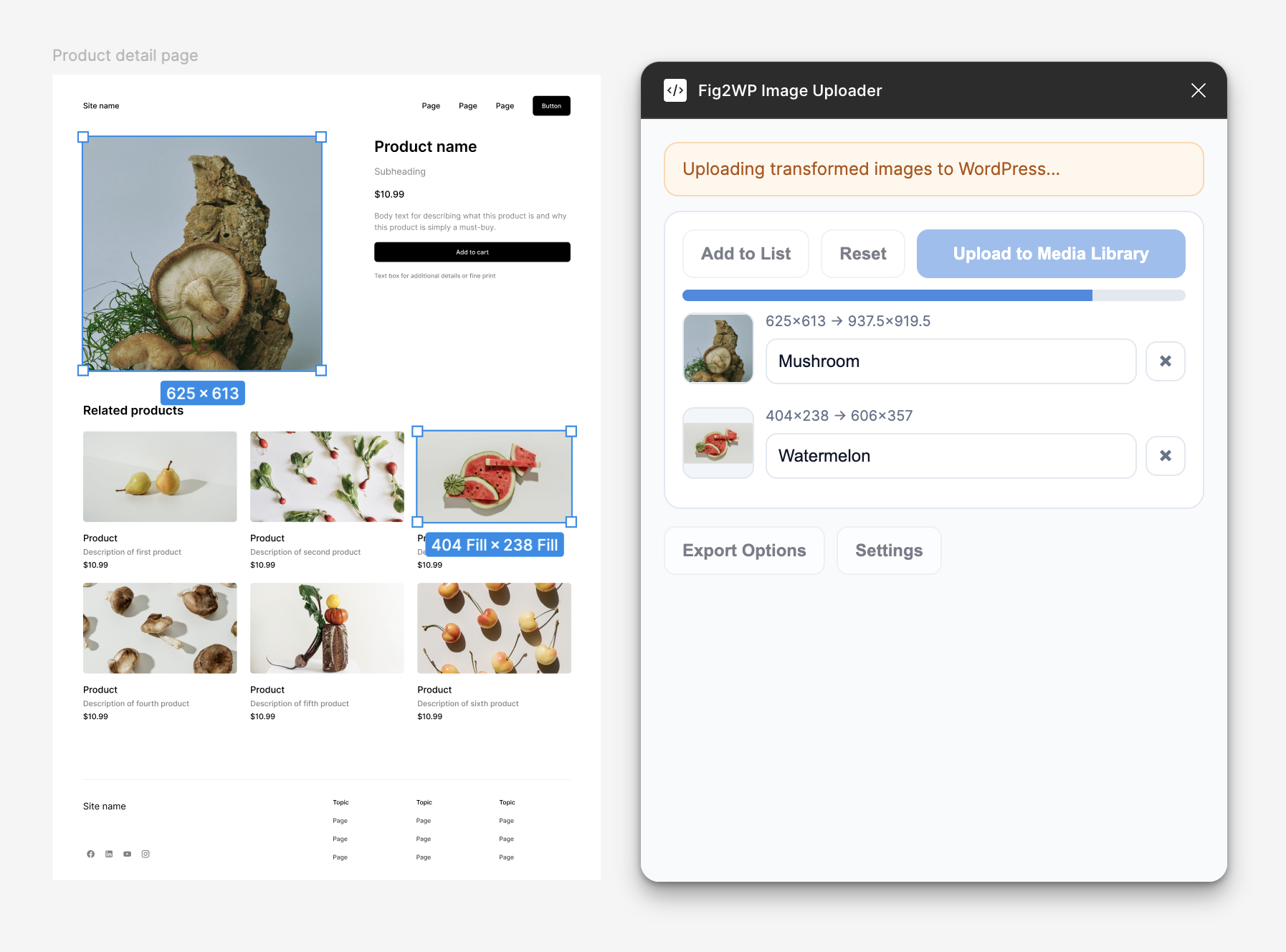
- Select one or more image layers in Figma.
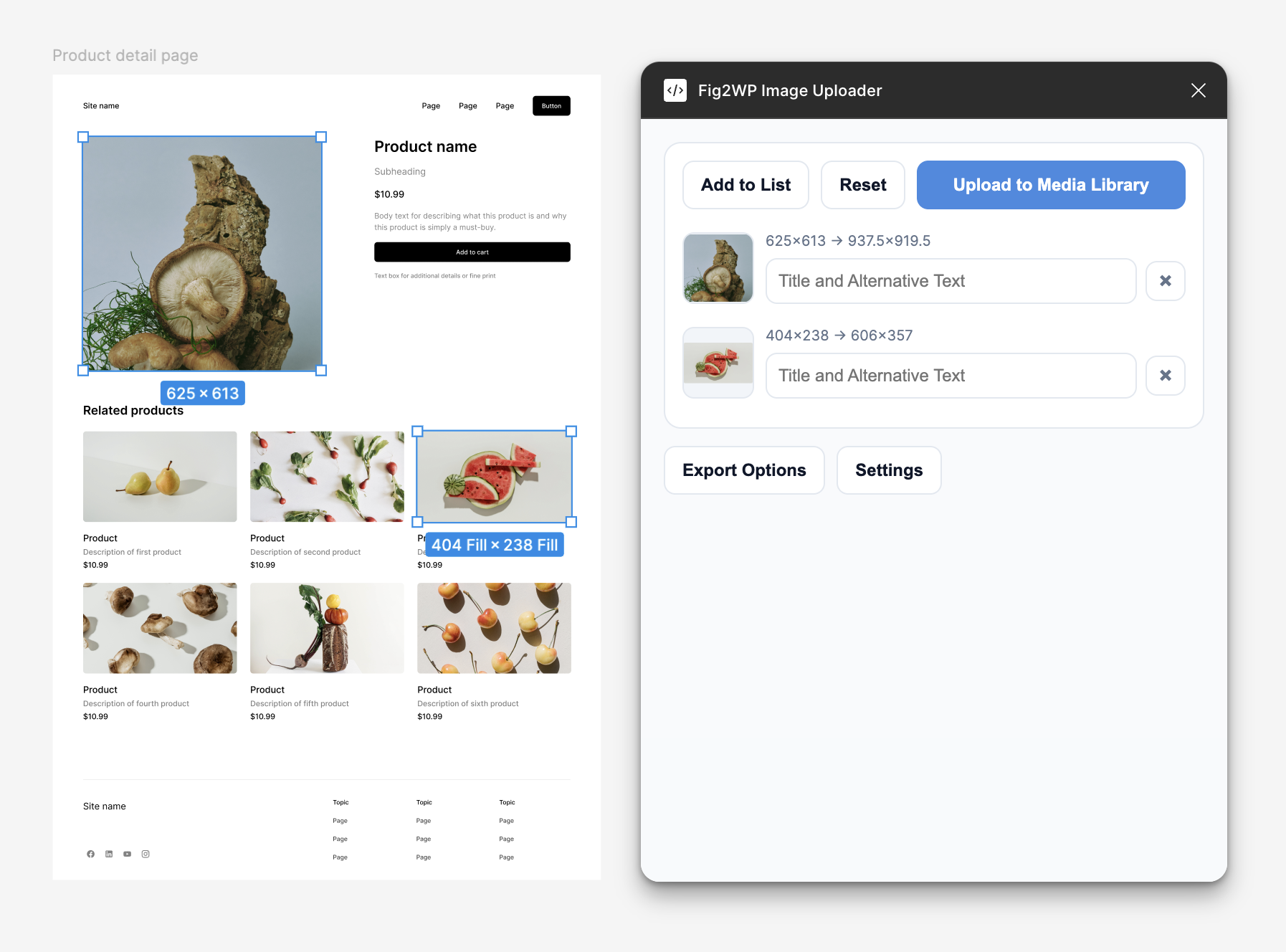
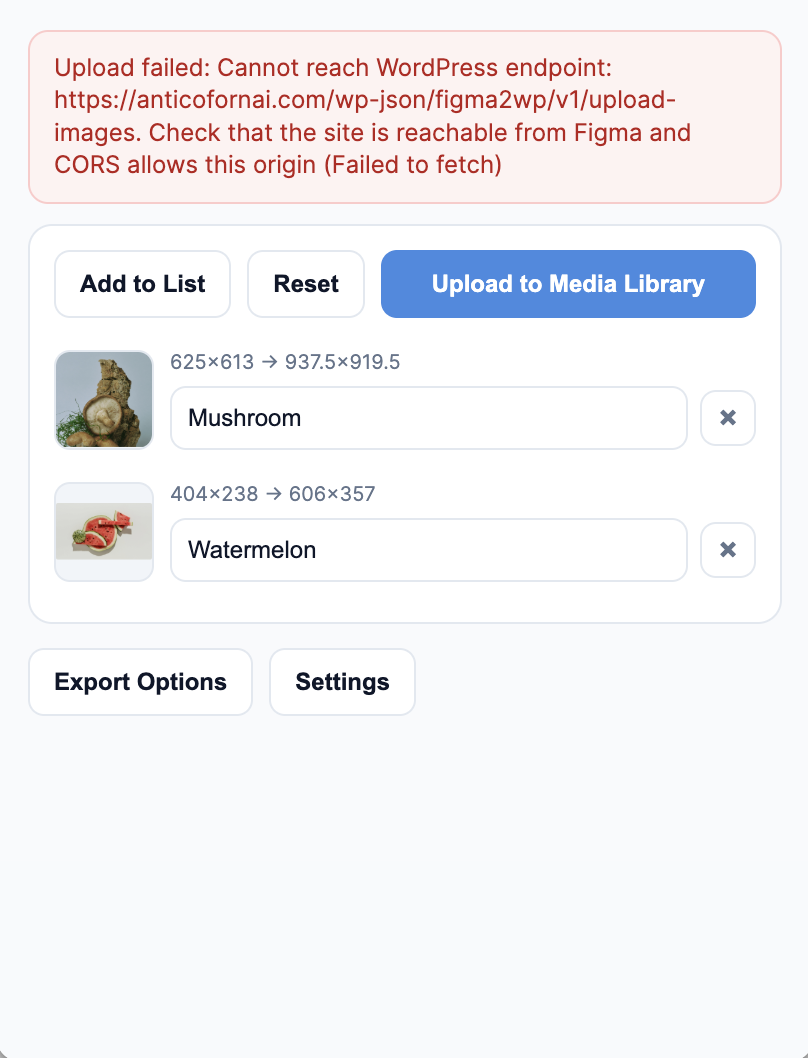
- In plugin UI, click Add to List.
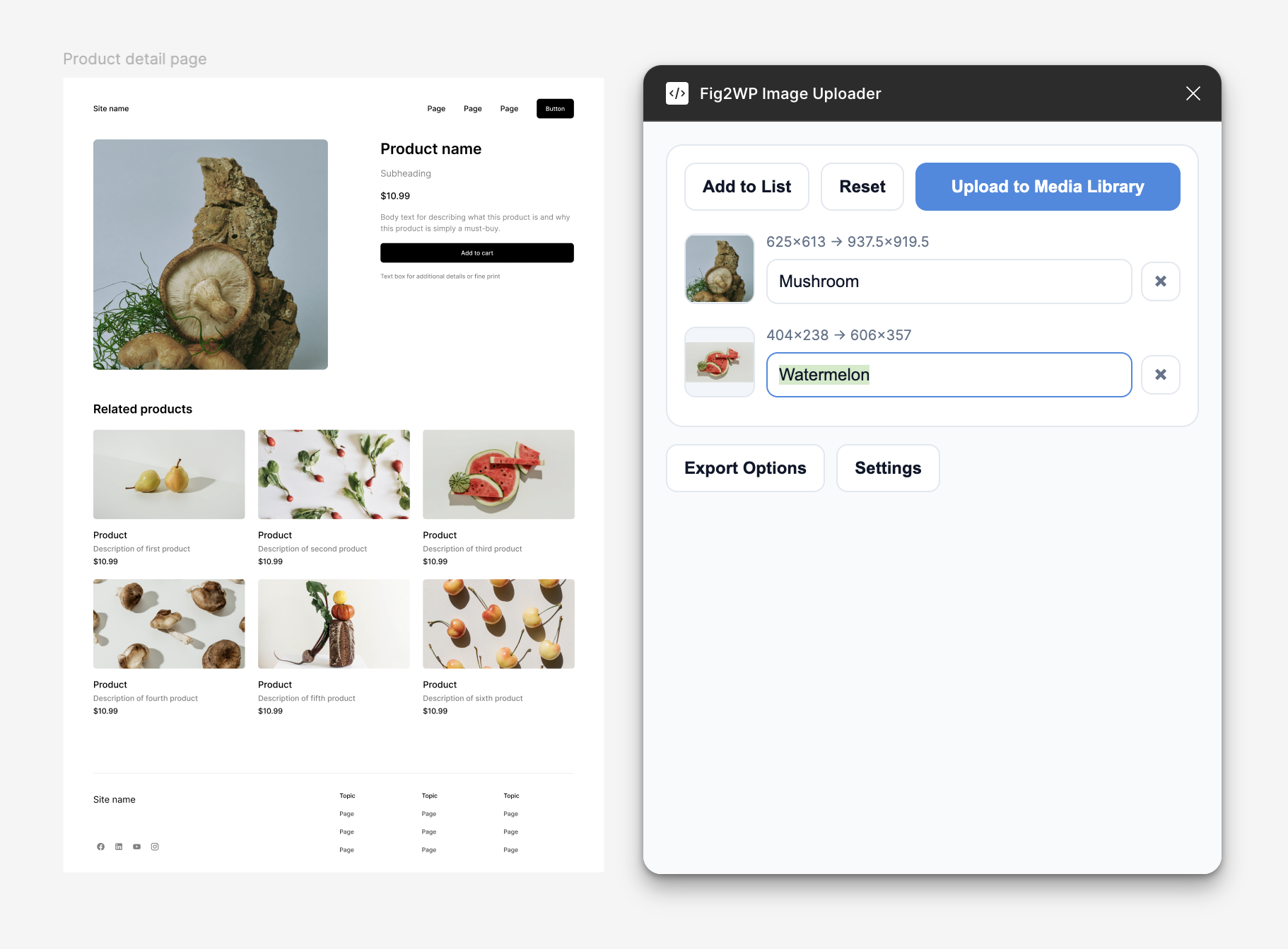
- For each row, edit the title (used as title and alt text).
- Click Upload to Media Library.
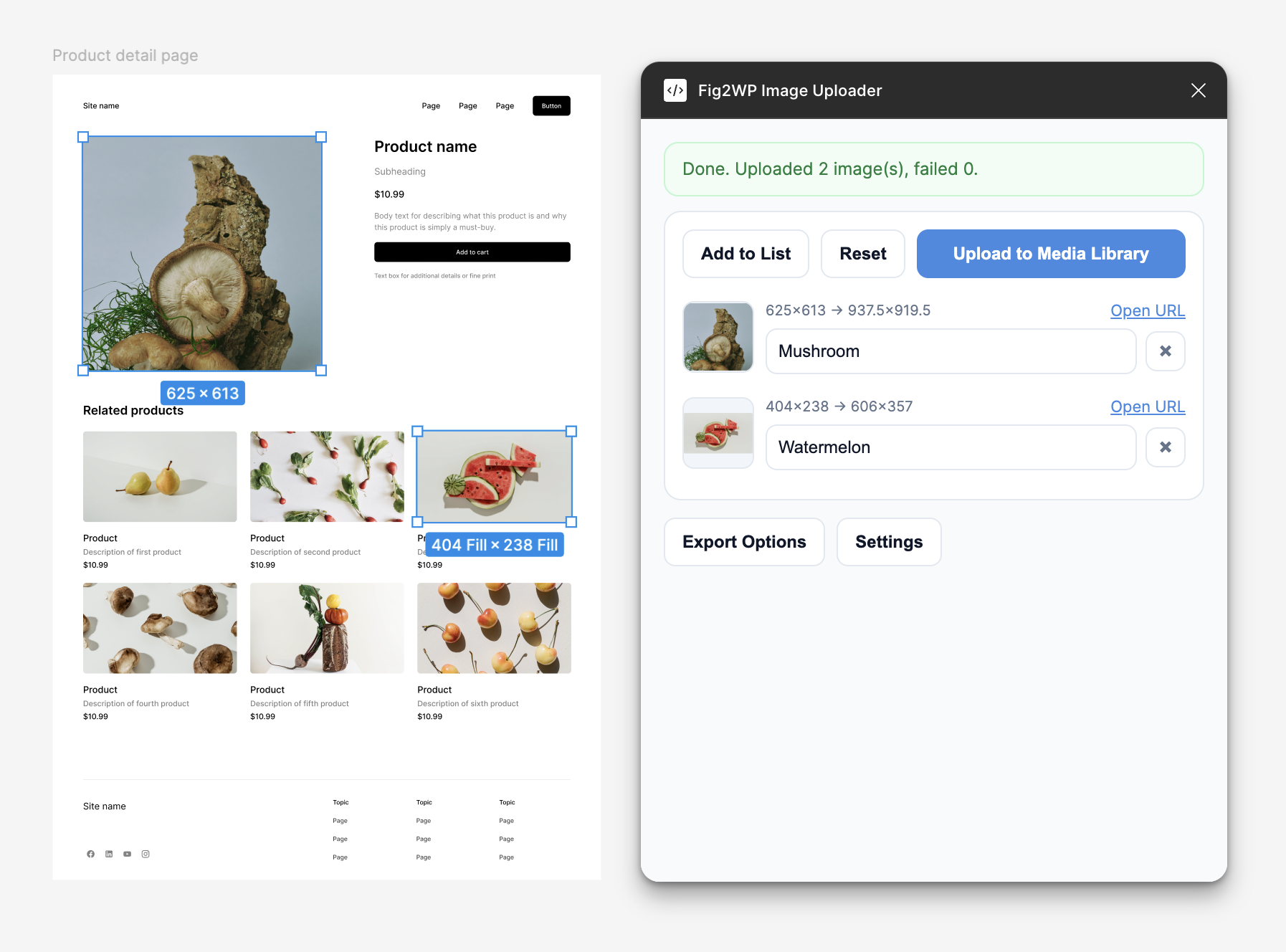
- Wait for export, transform, and upload progress to finish.
- Review results: successful uploads show an Open URL link.
Important: If no layer is selected, the plugin cannot add items to the upload list.
Verify files in WordPress Media Library
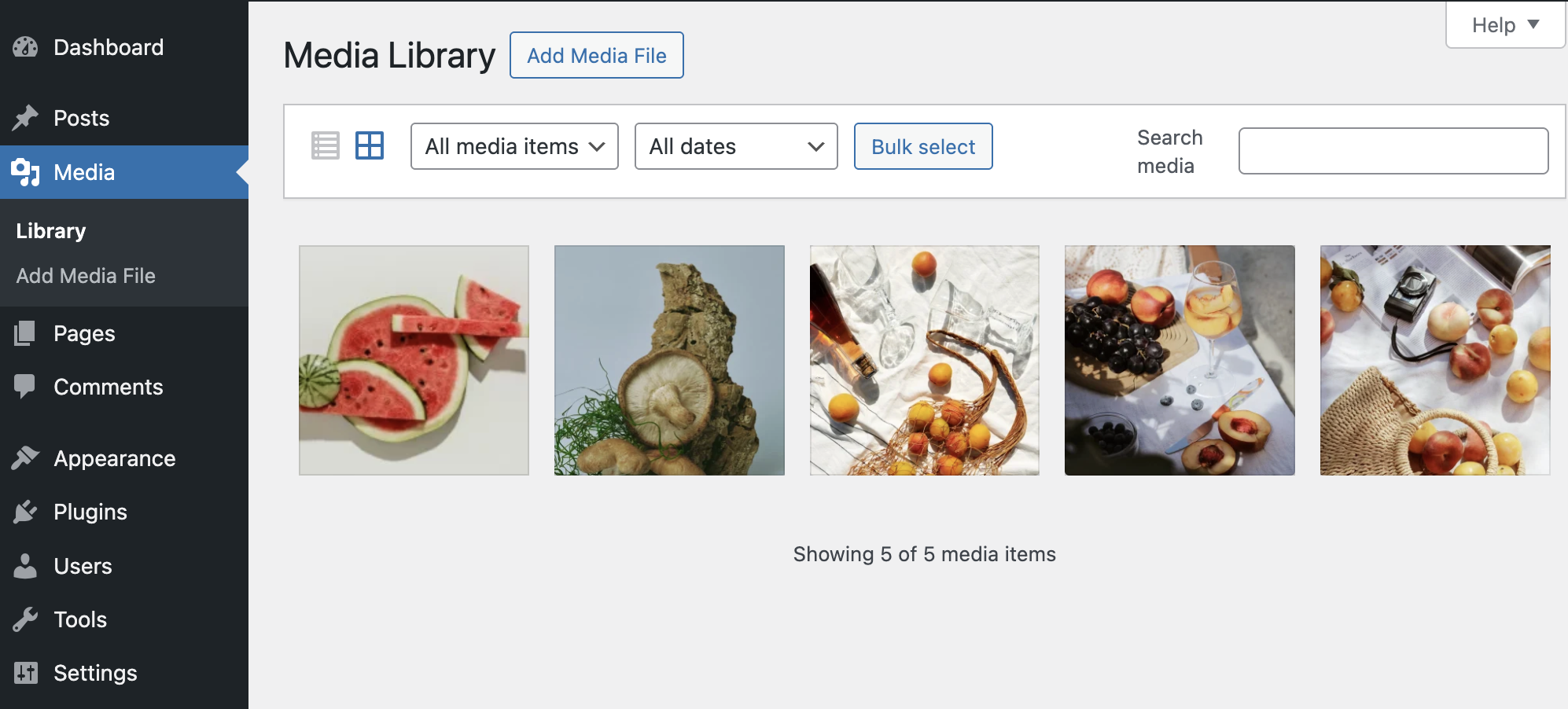
- Open Media → Library in WordPress Admin.
- Confirm that new images are listed.
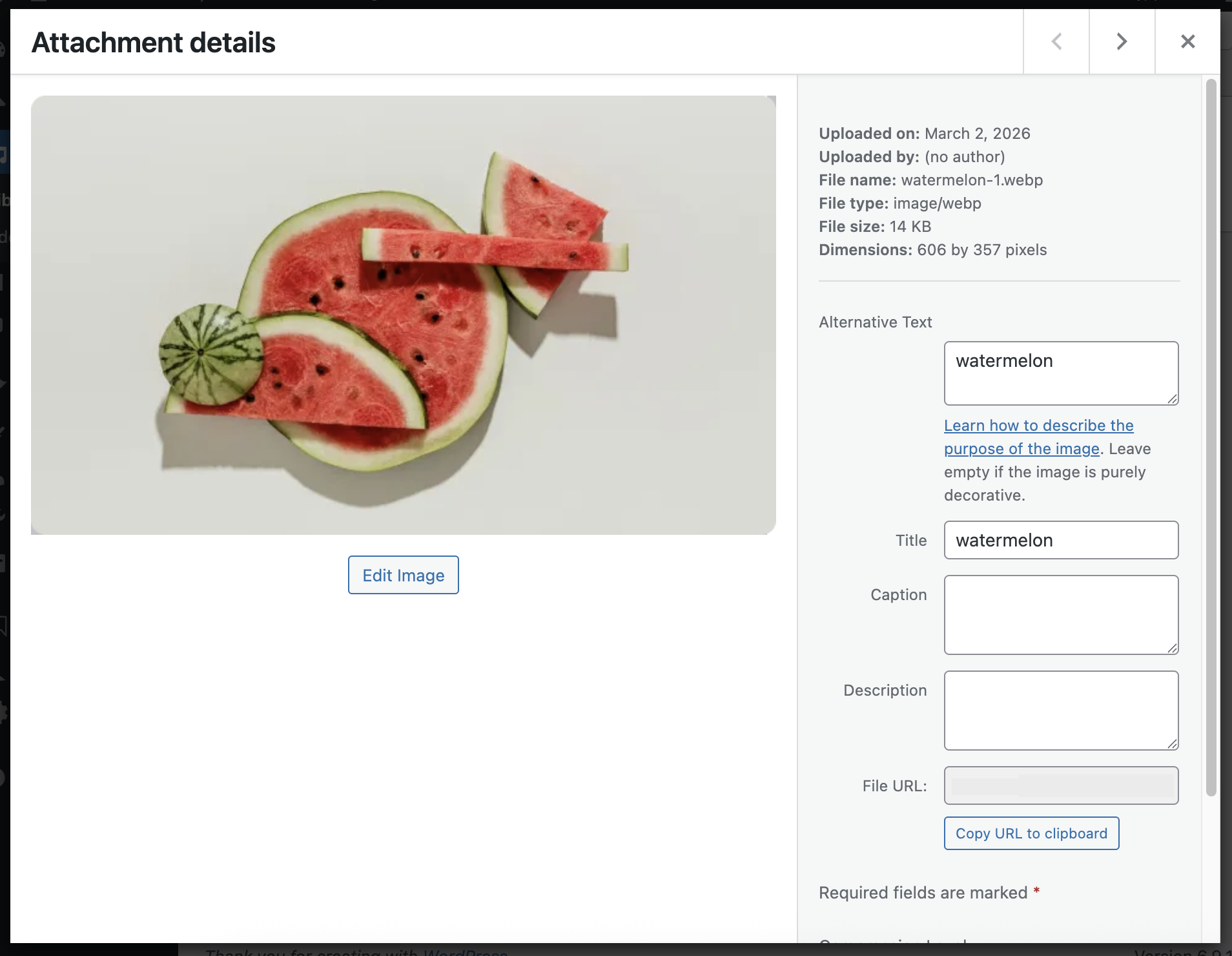
- Open an uploaded image and verify:
- Title matches your plugin input
- Alternative Text matches your plugin input
- File type and dimensions match export settings
Pro license and unlock
Use a Pro license key to unlock WebP, max dimensions, compression controls, and separate title/alt inputs.
- Purchase a Pro plan via the Upgrade button on the Figma plugin.
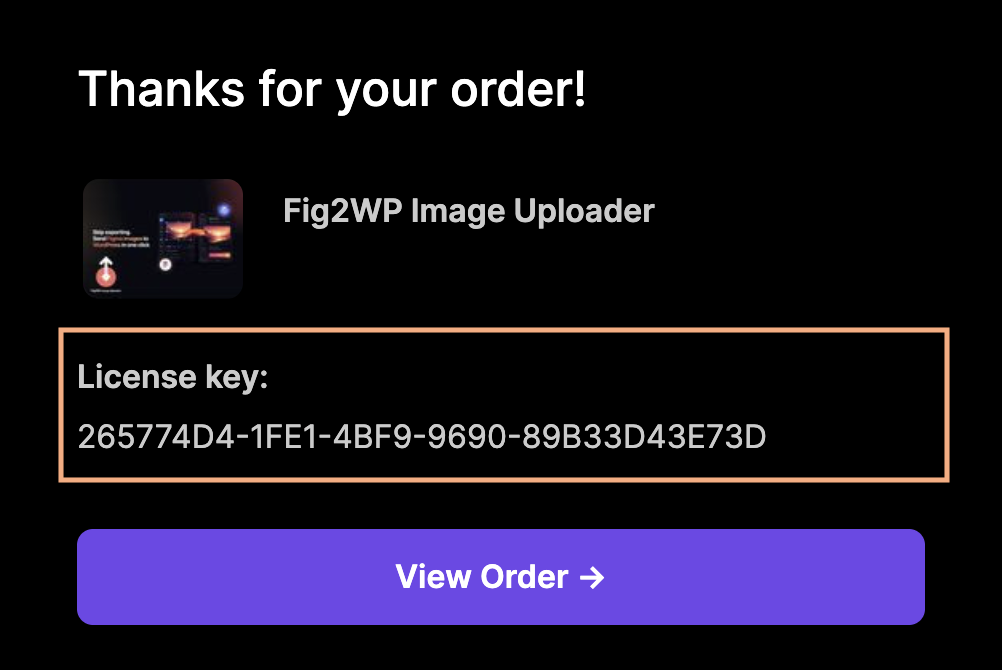
- After purchase, check your receipt email and find the line License key:.
- Copy the license key from the receipt email.
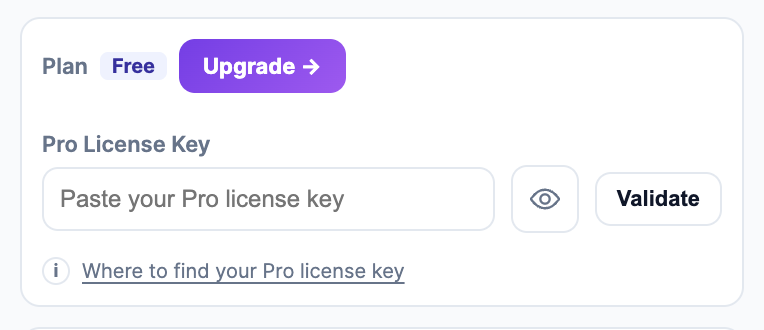
- Open Settings in the Figma plugin UI.
- Paste it into Pro License Key and click Validate.
Tip: You can toggle the eye icon to reveal the API key or license key while typing.
Common issues and quick fixes
- "Please set WordPress Website URL." → Fill URL in Settings.
- "Please set WordPress API Key." → Generate/copy key from WordPress settings.
- "URL must be valid http/https" → Include protocol, for example
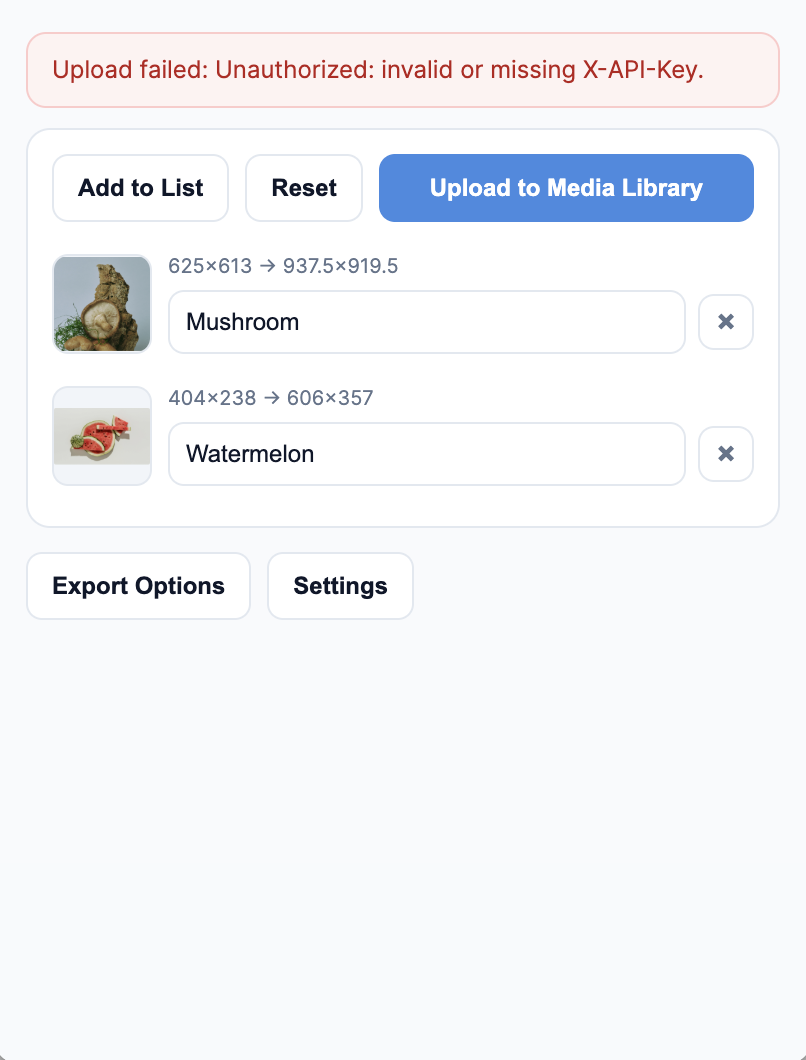
https://your-site.com. - "Unauthorized: invalid or missing X-API-Key" → API key mismatch. Regenerate and paste again.
- Cannot reach WordPress endpoint → Verify site URL, endpoint access, SSL, and CORS response headers.
- "No image added to the list." → Select layers and click Add to List first.
- "Your WordPress host blocked the request with an anti-bot/security challenge" → Your hosting firewall is challenging the upload. See Upload blocked by host firewall below.
"Could not verify API key right now."
This warning means the plugin connected to the server successfully, but WordPress returned an unexpected response — most commonly a server-level 404 from Apache/Nginx before WordPress even processes the request.
Step 1 — Check whether the REST API itself is reachable. Open this URL in your browser:
https://your-site.com/wp-json/
- If you see a block of JSON → the REST API works. Try deactivating then reactivating the tomatoSHIFT Image Uploader plugin in WordPress Admin to re-register its endpoint, then test again.
- If you get a 404 → the REST API is blocked at the server level. Continue to Step 2.
Step 2 — Flush WordPress rewrite rules. In WordPress Admin go to Settings → Permalinks and click Save Changes without changing anything. This rebuilds the URL routing rules that the REST API depends on. Then reload /wp-json/ to confirm it now returns JSON.
/wp-json/ still returns 404 after flushing permalinks, the REST API may be blocked by a security plugin or a server-level rule (e.g. an Nginx/Apache config). Contact your hosting provider or check for plugins that disable the REST API.Upload blocked by your host's firewall or anti-bot
If uploads fail with "Your WordPress host blocked the request with an anti-bot/security challenge" (or you see 0 uploaded, 0 failed on older versions), your hosting firewall is intercepting the upload before it reaches WordPress.
Why this happens
Uploads are posted straight from Figma to your own WordPress site — nothing passes through our servers. Some hosts and security plugins still treat an automated POST to /wp-json/ as bot traffic and answer with a CAPTCHA or JS challenge page instead of letting the REST API respond. The challenge page comes back instead of a result, so nothing gets uploaded.
Fig2WP already works around the common case: it posts to ?tomatoshift_upload=1 on your site root first, which sidesteps hosts that challenge /wp-json/ paths specifically, and falls back to the REST route. If both are blocked, the block is host-side and needs allowlisting. The most common culprits and fixes are below.
Confirm it's a firewall challenge
Open a terminal and send a test request straight to your site (replace the URL and key). This bypasses Figma entirely:
curl -i -X POST "https://your-site.com/wp-json/tomatoshift/v1/upload-images" -H "Content-Type: application/json" -H "X-API-Key: YOUR_KEY" -d '{"images":[]}'
- If you get JSON back (e.g.
figma2wp_missing_imagesorfigma2wp_unauthorized) → the endpoint itself is fine, and the challenge is aimed at the browser request Figma makes. Apply the host fix below. - If you get an HTML page mentioning
sgcaptcha,captcha, "Just a moment", or Wordfence → that security layer is blocking the request.
SiteGround (sgcaptcha / Anti-Bot AI)
SiteGround's Anti-Bot AI is not configurable from Site Tools (the Security → Blocked Traffic page only blocks IPs, it cannot allowlist). Open a ticket with SiteGround support and ask them to:
- Turn off the Anti-Bot AI challenge for authenticated REST requests to your site, or
- Exclude the path
/wp-json/tomatoshift/from the Anti-Bot AI challenge for your site.
Requests come from the designer's own machine, so the IP changes with whoever is uploading. Ask for the path exclusion rather than an IP allowlist.
Wordfence
- In WordPress Admin go to Wordfence → Firewall → All Firewall Options.
- Under Allowlisted URLs, add
/wp-json/tomatoshift/v1/upload-imagesfor thePOSTmethod. - If you use Rate Limiting or "block fake Google crawlers", make sure they aren't challenging the REST API.
Cloudflare in front of your own site
If your WordPress site also sits behind Cloudflare with Bot Fight Mode or a managed challenge:
- Go to your Cloudflare dashboard → Security → WAF → Custom rules.
- Create a rule: when
URI Path contains /wp-json/tomatoshift/→ action Skip (Bot Fight Mode, managed challenges). - Or turn off Bot Fight Mode under Security → Bots if it's not needed.
Other hosts / security plugins
The same idea applies to any WAF (WP Engine, Sucuri, iThemes/Solid Security, server-level mod_security): allowlist the endpoint /wp-json/tomatoshift/v1/upload-images and the ?tomatoshift_upload=1 query on your site root. After applying the change, run the curl test above again — when it returns JSON, the Figma upload will work too.
curl test (the first 15–20 lines) to hello@tomatoshift.com and we'll help identify which layer is blocking it.