
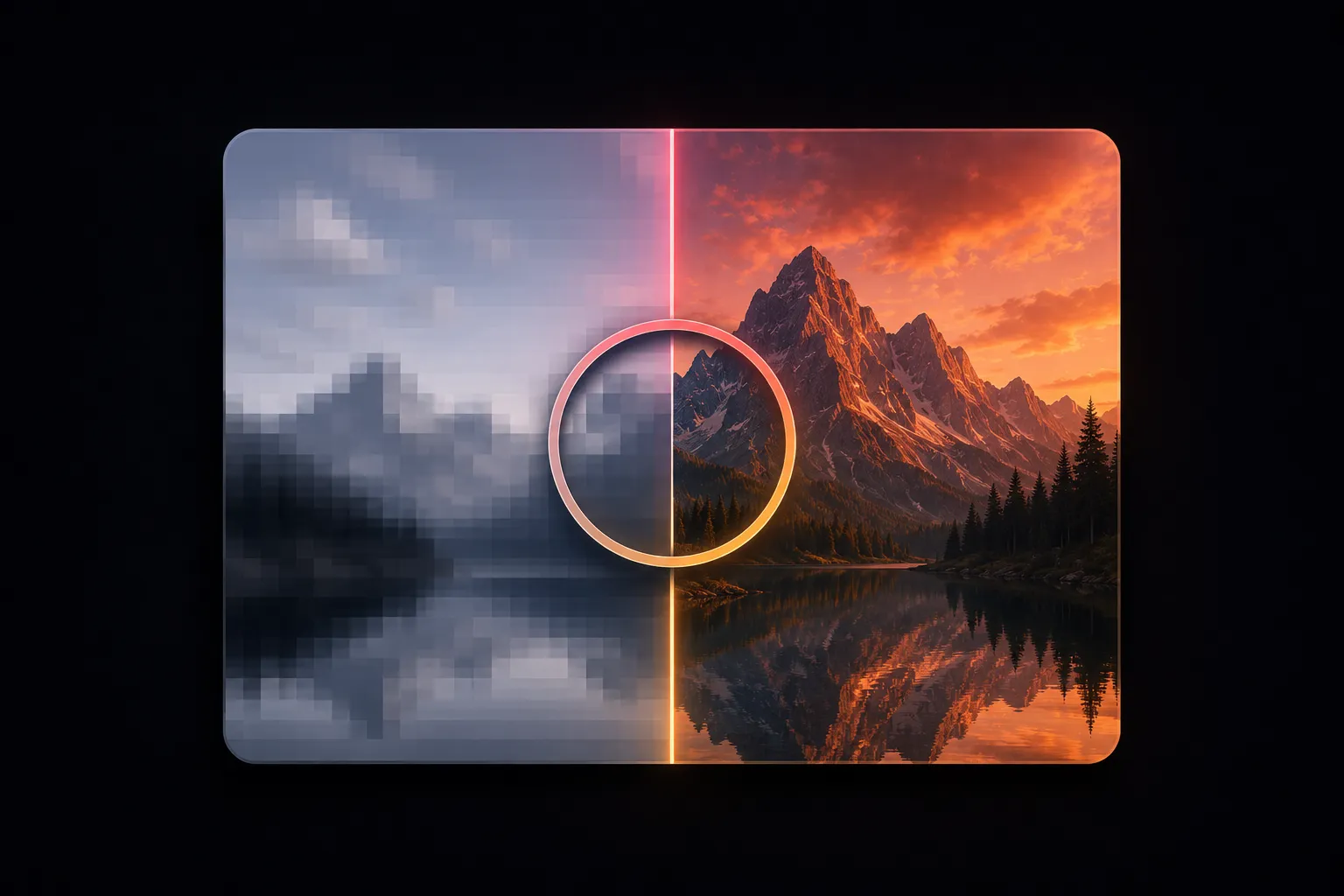
Why Are My Figma Exports Blurry? The Real Fix (and 3 Causes Nobody Mentions)
The short answer: you exported at 1x and it's being viewed on a 2x screen. Every phone and most modern laptops pack two physical pixels into each CSS pixel, so a 1x export only has half the detail the screen is capable of showing.
The fix: export at 2x the size the image is displayed at — not 2x the Figma frame. A picture shown 600px wide on the page needs a 1200px-wide file.
That solves it maybe eight times out of ten. If you already did that and it's still soft, skip to the other three causes — one of them is your CMS undoing your work after upload.
This is the single most common complaint about images out of Figma, and almost every answer online stops at "export at 2x". That's the right advice — it just isn't the whole story, and if you've already tried it and your image is still soft, the usual answer leaves you stuck.
Here's the full picture: what's actually happening, why it looks fine on your machine, and the three other things that cause the same symptom.
Why 1x looks fine to you and blurry to everyone else
A CSS pixel is not a physical pixel. On a standard display they're the same. On a high-density display — every phone made in the last decade, every MacBook, most Windows laptops above budget tier — the device packs two physical pixels into each CSS pixel in each direction. Some Android phones use three.
So when you put a 600px-wide image into a 600px-wide slot on the page:
| Screen | Physical pixels available | Pixels your image has | Result |
|---|---|---|---|
| Standard (1x) | 600 | 600 | Sharp |
| Retina / high-DPI (2x) | 1200 | 600 | Soft — browser upscales |
| High-density phone (3x) | 1800 | 600 | Noticeably soft |
The browser doesn't leave a gap. It stretches your 600 pixels across 1200 physical ones, inventing the difference. That invention is the blur.
Why it looks perfect in Figma: Figma renders vectors live at whatever zoom you're at, so it's always drawing at your screen's true resolution. Export rasterises to a fixed pixel count. The moment you export, you freeze the detail — and 1x freezes it at half what a modern screen wants.
The mistake in "2x": frame size vs displayed size
This is where people who followed the advice still end up blurry.
2x means twice the displayed size, not twice the Figma frame. Those are only the same thing if your design is at 100% of the final render size — and often it isn't.
An example that catches everyone. You design a card at 400px wide in a 1440px-wide desktop mockup. On the real site, that card sits in a container that's 600px wide on large screens. You export at 2x, get an 800px file, and it's still soft — because the target was 600 × 2 = 1200px, not 800px.
The rule that actually works:
export width = (width the image is displayed at on the page) × 2If you're not sure what that displayed width is, right-click the image on your live site → Inspect, and look at the element's rendered width. That number × 2 is your export target.
Why 4x doesn't help (and hurts)
The instinct after being burned by blur is to overcorrect. Don't.
No mainstream screen resolves more detail than a 2x export supplies at normal viewing sizes. What 4x reliably does is quadruple your file size versus 2x. A 300 KB image becomes 1.2 MB, your Largest Contentful Paint gets worse, and Google measures that.
3x is defensible for a hero image that fills the screen on a high-density phone. 4x on the web is never worth it.
Still blurry after 2x? The other three causes
If you got the maths right and it's still soft, it's one of these. In our experience, in this order.
1. The source image was already too small
If the layer is a photo you dragged into Figma rather than something you drew, the export can never contain more detail than the original file had. Drop a 800px photo into a 600px frame, export at 2x, and Figma hands you a 1200px file that was upscaled from 800px of real information. It's bigger. It isn't sharper.
How to check: select the layer, and in the Fill section click the image. Figma shows the original dimensions. If that number is below your export target, no export setting will save it — you need a bigger source file.
This is also why Fig2WP has an Original Image mode. It pulls the raw bytes of the placed image straight out of the file rather than re-rendering the frame, so you get exactly what was imported, at full resolution, with nothing resampled on the way.
2. JPG compression ate the fine detail
Figma's JPG export gives you a coarse quality preset and no numeric control. It's reasonably gentle, but compression artefacts land hardest exactly where you notice them most: high-contrast edges, small text, thin lines.
If your "blurry" image is a screenshot with 12px type in it, this is probably your cause rather than resolution. Export PNG instead, or use a tool that gives you a quality control — see our export settings guide for the full breakdown.
Related but different: if the image is sharp and the colours are what look wrong, that's a colour profile mismatch, not a resolution problem.
3. WordPress resized it after you uploaded it
This one is invisible from inside Figma, and it's the reason plenty of correctly-exported images still look wrong on the live site.
WordPress has a "big image" threshold of 2560px. Upload anything wider and WordPress scales it down, keeps your original as filename-scaled.jpg, and serves the scaled version. If you exported a wide hero at 3x to be safe, you may have crossed that line and had WordPress undo the work.
The exact widths to export for each slot are in the WordPress image size guide. WordPress also generates its own thumbnail sizes and picks one via srcset. If your theme's registered size is smaller than the slot it's displayed in, the browser gets handed a too-small file no matter how good your export was.
How to check: on the live page, right-click the image → Open image in new tab, and look at the URL. If it ends in -scaled or has dimensions appended like -1024x768, you're not seeing your export — you're seeing something WordPress made from it.
Diagnose it in 30 seconds
Right-click the blurry image on your live site → Open image in new tab. Look at the URL and the image's real dimensions.
| What you see | What it means | Fix |
|---|---|---|
| Width is exactly the displayed width | Classic 1x export | Re-export at 2x |
| Width is 2x but still soft | Source image was too small | Get a larger original |
Filename ends -scaled | WordPress downsized it past 2560px | Export narrower than 2560px |
Filename ends -1024x768 etc. | A theme thumbnail size is being served | Check theme image sizes / srcset |
| Sharp edges look mushy, resolution is fine | JPG compression | Use PNG, or control quality |
Cheat sheet
| Asset | Export scale | Format | Watch out for |
|---|---|---|---|
| Content / blog image | 2x of displayed width | WebP or JPG | Keep under 300 KB |
| Full-width hero | 2x, capped at 2560px | WebP or JPG | The WordPress 2560px threshold |
| Screenshot with text | 2x | PNG or WebP q90 | JPG artefacts on type |
| Logo / icon | — | SVG | Never rasterise these |
| Placed photo | Original Image mode | WebP or JPG | Source resolution ceiling |
FAQ
Should I export at 2x, 3x or 4x?
2x for the web. 3x only for a hero that fills a high-density phone screen. 4x never — no screen shows the difference, and you've quadrupled the file size.
I exported at 2x and it's still blurry.
Either your source image was too small, JPG compression softened it, or your CMS resized it after upload. Run the 30-second diagnosis — the URL of the live image tells you which.
Why does it look sharp in Figma but blurry on the site?
Figma redraws vectors live at your screen's true resolution, so it always looks perfect. Export freezes it at a fixed pixel count. If that count is lower than the space the browser gives it, the browser upscales and you get blur.
Does exporting PNG instead of JPG make it sharper?
Only if compression was your problem. PNG is lossless, so it preserves hard edges and small text perfectly — but it cannot add resolution that isn't there, and the files are much heavier. Fix the scale first, then the format.
What is the 2560px WordPress limit?
WordPress scales any uploaded image wider than 2560px down to that width by default, keeping the original as a -scaled file. It's why over-exporting can be worse than exporting correctly.
Set the size once, get it right every time
Fig2WP applies scale, max dimensions, format and quality during export and sends the finished file straight to your WordPress Media Library — so you can cap width below the 2560px threshold and see the exact file size before anything uploads.