

Bulk Upload Images to the WordPress Media Library: 4 Methods Compared
Forty images to upload. The Media Library uploader takes them ten at a time, chokes on the eleventh, and when it finally finishes you get to type alt text into forty attachment screens. There has to be a better way — and there are four, depending on where your images are coming from.
Method 1: Drag and drop into the Media Library
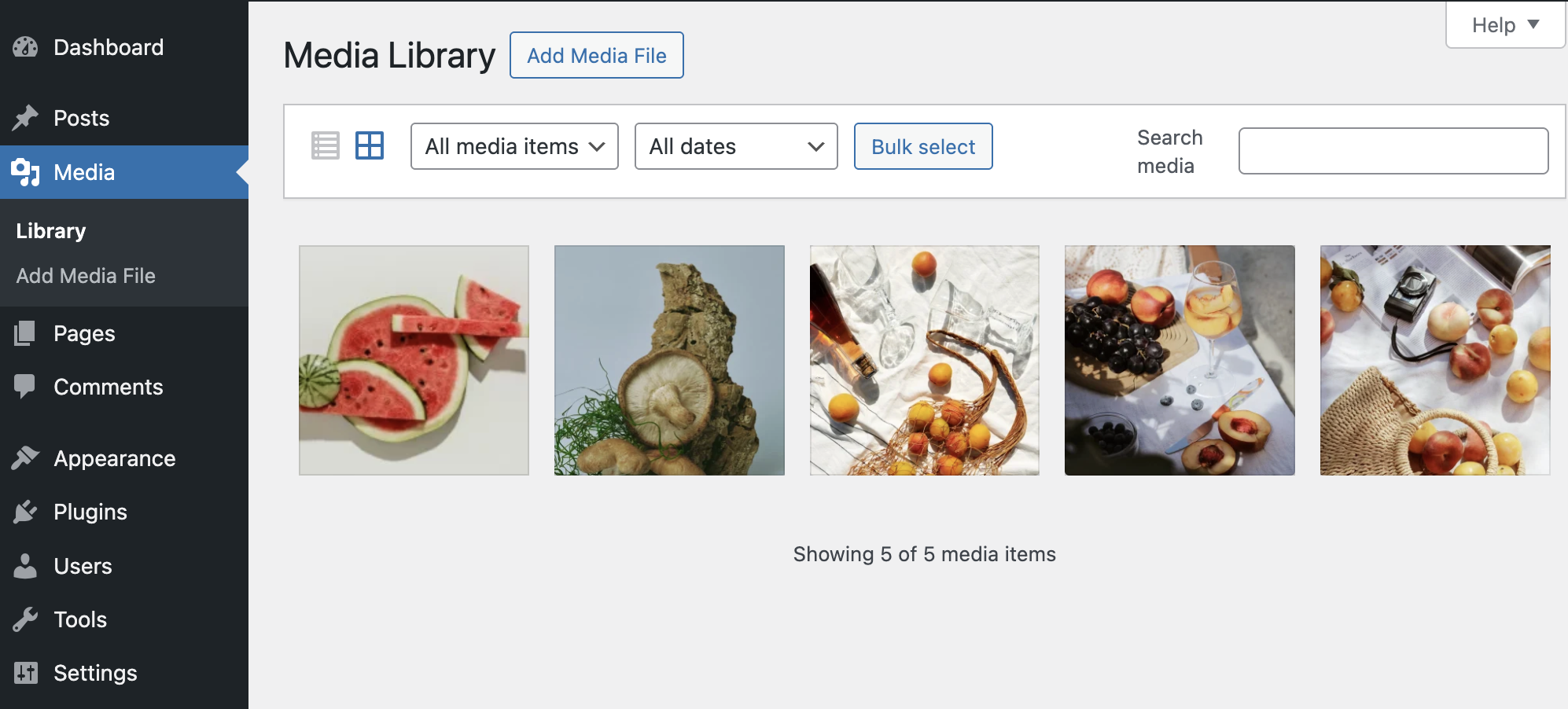
Media → Add New, drag the folder contents in, wait. It works, everyone knows it, and for a dozen well-prepared files it's genuinely the right tool.
The limits show up at scale. Browsers upload sequentially, so big batches are slow. PHP's upload_max_filesize and max_execution_time can kill large files or long batches mid-run. And the killer: every image arrives with no alt text and whatever filename it had on disk. The metadata work hasn't been avoided, just postponed to the worst possible place — a grid of thumbnails with no context.
Use it when: under ~20 images, already compressed, already named.
Method 2: FTP / SFTP upload
Copying files into wp-content/uploads over FTP feels like it should work. It half does. The files are on the server, but WordPress has no idea they exist — the Media Library is a database, not a folder listing.
So FTP is only ever half a method. You pair it with something that registers the files: a "sync from server" plugin, or WP-CLI (next method). That makes it the right call mainly when the files are enormous or the batch is in the hundreds, where browser uploads genuinely fall over.
Use it when: hundreds of files or very large ones, and you have server access anyway.
Method 3: WP-CLI
If you're comfortable in a terminal and have SSH access, WP-CLI is the power option:
wp media import ./exports/*.jpg --alt="Studio photo" --title="Product shot"It's fast, it's scriptable, and it properly registers everything — thumbnails generated, database rows created. The catch is in that example: --alt applies one string to the whole glob. Per-image metadata means per-image commands, which means writing a script, which means you've become the tooling.
Use it when: migrations, imports from another system, anything you'd want repeatable.
Method 4: Upload straight from the design tool
All three methods above share an assumption: the images are already files on a disk. If they're actually layers in a Figma file, you're paying for an export-and-download step before the "upload" problem even starts.
Fig2WP Image Uploader removes that step. Select the layers in Figma, and the plugin exports, converts (WebP/PNG/JPG with quality control), and batch-uploads them to the Media Library over an API key. File names and alt text are set in the plugin, while you're looking at the actual designs — so images arrive with their metadata already attached, not as a to-do list.
Use it when: the images come from Figma. Which, for site builds, is most of them. The full workflow guide walks through setup.
The comparison, honestly
| Method | Speed at scale | Metadata handling | Setup cost |
|---|---|---|---|
| Drag & drop | Poor past ~20 files | All manual, after upload | None |
| FTP + sync | Good | All manual, after sync | FTP credentials + plugin |
| WP-CLI | Excellent | Scriptable, per-image is DIY | SSH + comfort with CLI |
| Direct from Figma | Good (batch) | Set once, at the source | 5-minute API key setup |
The pattern worth noticing: the methods differ less on upload speed than on where the metadata work happens. Alt text and file names typed at the source, with the design in front of you, actually get written. The same work postponed to a thumbnail grid mostly doesn't — and that's a measurable SEO and accessibility cost, not a tidiness one.
FAQ
Why do my uploads keep failing partway through?
Almost always a PHP limit. Check Site Health → Info → Server for upload_max_filesize, post_max_size, and max_execution_time. Raise them in php.ini or ask your host. If only large files fail, it's the size limits; if long batches die, it's the execution time.
Can WordPress see images I upload via FTP?
Not until they're registered in the database. Pair FTP with wp media import or a sync plugin.
Is there an upload limit in the Media Library?
The browser uploader inherits your PHP limits — commonly 2–64 MB per file depending on host. There's no hard count limit, but big batches get slow and fragile.
Skip the disk entirely
If your images start in Figma, Fig2WP batch-uploads them to the Media Library with names and alt text already set — no export, no downloads folder, no attachment-screen marathon.